Flip switches between windows, not applications, on the key you already use for it. Six browser windows are six entries, not one. Everything below is that one idea, reached three different ways: all your windows, one application's windows, or straight to a named application without looking at anything.
⌘ Tab
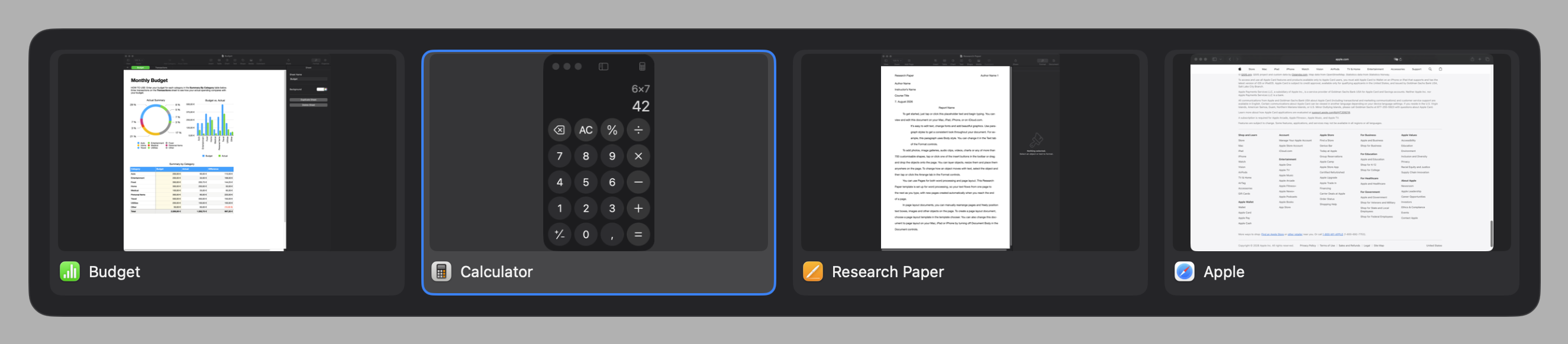
Every window on the space, most recently used first. Keep Option held down. Each tap of Tab moves one window along; let go of Option and the one you landed on comes forward.
That is the whole gesture, and it is the same one as on Windows — except that here the second entry is the window you were in before, so a quick ⌘ Tab and release always bounces you back to where you just came from.
Be quick and you never see it. Release inside 150 milliseconds and Flip switches without drawing anything at all. The grid only appears if you hesitate — so bouncing between two windows costs no picture, and browsing still gets one.
←→↑↓⇧esc
Arrow keys move the selection in the grid. ⇧ held with Tab goes backwards. esc gives up and changes nothing.
Your hand is already on the mouse? Hover to pick, scroll the wheel to step along, click to confirm. Clicking the dimmed area beside the grid gives up, like esc.
Hovering only takes over once the pointer actually moves. A grid opening under a resting mouse never steals the window your fingers just picked.
⌥ Tab
Same gesture, narrower question: only the windows of whatever application is in front. This is the one to reach for when you have four documents open in the same editor and Alt-Tab would show you everything else too.
Stock macOS puts this on ⌘ `, a key half the keyboards in Europe put somewhere else. Flip takes ⌘ Tab over while it runs — Pause in the menu bar hands it straight back, which is what you want for the length of a screen share.
⌥ F
One key, one application. ⌥ F reaches the Finder the moment you install Flip; add ⌥ S for Spotify, ⌥ T for your terminal. Nothing is drawn, you are simply there. This is the part that stops feeling like a switcher and starts feeling like the keyboard has application keys.
The same key twice does something useful: press it again while that application is already in front and you get a grid of its windows. Press it while the big grid is open and it narrows to that application instead.
Set one up: Settings › Shortcuts › Add Shortcut, press the key, pick the application. It applies as you type — there is nothing to save.
Flip ships with exactly one binding — ⌥ F — so the rest of the alphabet is yours rather than somebody else's habits.
⌃⌥←⌃⌥↩
Flip also moves the window you are in, so you do not need a second application for it. Control and Option with the arrows gives you the halves, with u i j k the four quarters, and with ↩ the whole screen.
Filling is a toggle: press it again on a window that already fills and it goes back exactly where it was.
⇧⌥← and ⇧⌥→ throw the window to the next display and keep its place on it — a left half stays a left half.
| ⌘ Tab | every window, most recently used first |
| ⌥ Tab | the windows of the application in front |
| ⌥ F | straight to the Finder; bind your own keys for the rest |
| ⌥ then a key | narrow the open grid to that application |
| ←→↑↓ | move the selection |
| ⇧ | added to any of those, go backwards |
| esc | give up, change nothing |
| the mouse | hover to pick, wheel to step, click to confirm |
| ⌃⌥←⌃⌥→⌃⌥↑⌃⌥↓ | halves |
| ⌃⌥U⌃⌥I⌃⌥J⌃⌥K | quarters |
| ⌃⌥↩ | fill the screen, or put it back |
| ⇧⌥←⇧⌥→ | previous or next display |
Both Tab shortcuts can be changed in Settings › General, and so can the display moves. The halves and quarters are fixed: with the arrow keys, every remaining modifier is already spoken for by macOS.
Along the bottom of the settings window is a picture of your keyboard with the keys of whichever tab you are on lit up — because ⌃⌥⌘⇧ mean nothing until you see which key each one is.
They appear in the grid like any other. Choosing one lifts it out of the Dock rather than skipping it.
They are the only reason Flip asks for Screen Recording. Turn them off in Settings and it shows application icons instead — and stops asking.
Windows on a space you have not visited yet are not in the list. Visit it once and Flip remembers them from then on, across spaces.
Copy Diagnostics in the menu puts the version, both permissions, every setting and the recent log on the clipboard — enough for an issue without opening a terminal.
Pause in the menu bar hands both hotkeys back to macOS until you resume, so nothing surprises anyone watching.